
What You Can Download
The downloads are grouped by purpose and operating system:
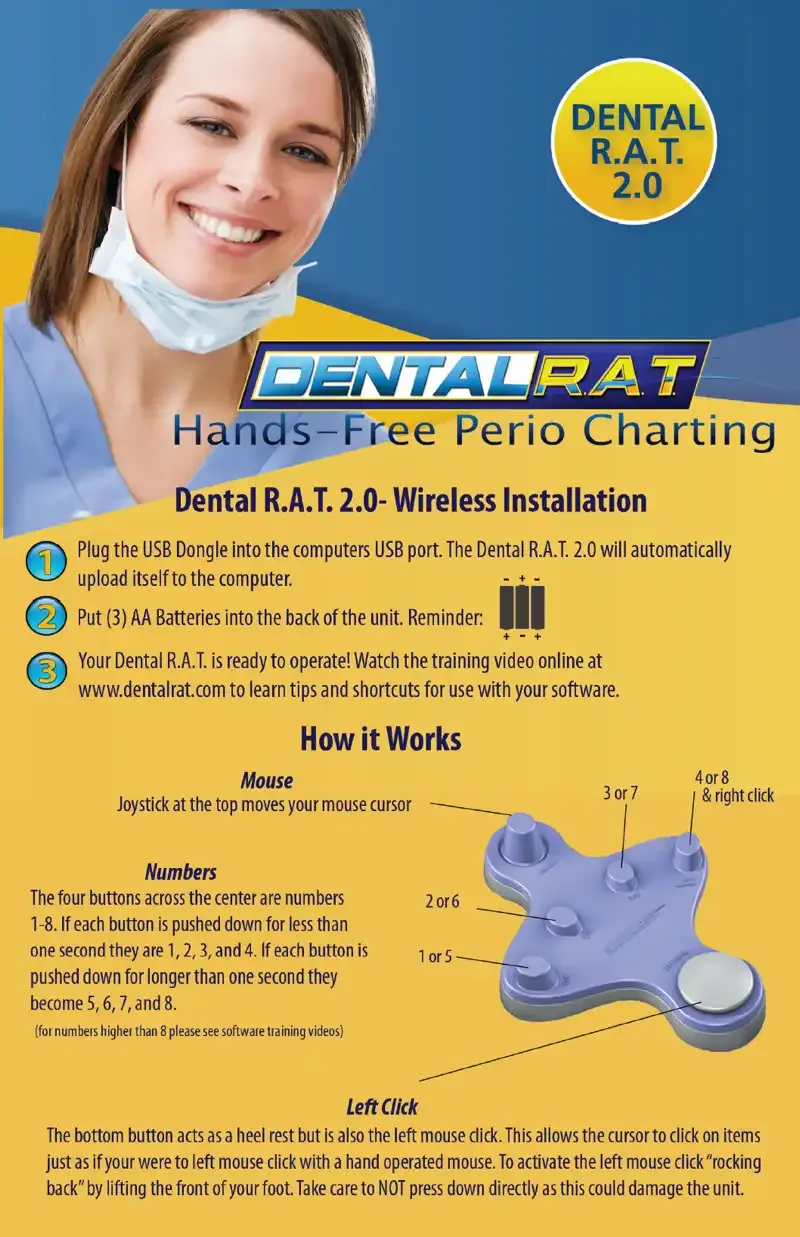
basic instructions for installing and starting to use the Dental R.A.T.
a zipped file that runs from your desktop or dock.
(32-bit and 64-bit)
an installer with a setup wizard, with published MD5 values so you can verify file integrity.
the earlier "tooth" and "dongle icon" builds, with MD5 and SHA-256 values, for offices still running those releases.
The User Manual
Start with the user manual if you are setting up a unit for the first time. It covers the basic installation and first-use steps. Read it alongside the toe, heel and input-button layout, which is explained on the page about how the device works.
The Dental R.A.T. has a toe button that moves the on-screen arrow, four input buttons for charting numbers 1 through 8 and a right click, and a heel button that acts as the left click.
Installing Audio Feedback on a Mac
The Mac file arrives as a compressed archive, so it must be unzipped before it can run. The steps are:
- Double-click the download icon to fetch the attachment.
- Unzip it by double-clicking the file in your Downloads folder.
- Drag the unzipped program to your desktop so it is easy to find.
- Double-click it to run.
To have it start every time the computer boots, right-click its icon in the dock, which shows a piece of paper and a pencil. Choose "Options," then "Open at Login." To stop it, right-click the dock icon and choose "Quit," or simply turn the computer volume down.
Installing Audio Feedback on Windows 10
Windows 10 builds come in 32-bit and 64-bit versions. Choose the one that matches your operating system. Before installing, remove any older Dental R.A.T. software. Open the Control Panel, go to Add/Remove Programs and remove the Dental R.A.T. entry. Two versions of the audio program running side by side can conflict over the same device, so a clean removal is good practice.
Then install the new file:
- Double-click the download and choose "save."
- Choose "open," then double-click "setup" to launch the installation wizard, and follow its steps.
- When installation finishes, open the Start menu and select All Programs.
- Choose Beckmer, then "Dental R.A.T. Run Always."
Running the program places a USB icon in the lower right corner of the screen. Right-click it to enable sound or disable it.
Verifying File Integrity With Checksums
The Windows 10 downloads list MD5 values for the 32-bit and 64-bit installers. The previous versions list MD5 and SHA-256 values. A checksum is a fixed-length fingerprint calculated from a file's exact bytes. If even one byte changes, whether from an interrupted download, corruption or tampering, the fingerprint no longer matches. Checking it confirms that the file on your computer is identical to the one published.
On Windows, you can compute a hash in Command Prompt with the built-in certutil tool, for example certutil -hashfile filename MD5. Substitute SHA256 for the algorithm when a SHA-256 value is listed. On a Mac, the Terminal commands md5 and shasum -a 256 do the same job. Compare the result with the published value, ignoring upper or lower case. SHA-256 is the stronger algorithm. MD5 remains useful for detecting accidental corruption, which is the common problem in office networks.
Previous Versions
Earlier builds of the Windows audio feedback program remain available: "Audio feedback with the tooth" and "Audio feedback with Dongle Icon." Their installation procedure matches the current Windows one. Remove the old software, run the installer, and then launch "Dental R.A.T. Run Always" from the Beckmer folder. They are there for practices that need to match an existing setup or are unsure which release they have. If you cannot tell which build suits your computer, call before installing.
Practical Tips for Office and IT Staff
- Save to a predictable location. A desktop or shared installers folder makes later reinstallation easier.
- Confirm your Windows architecture first. Pick the 32-bit or 64-bit installer to match your system.
- Remove old versions before installing. Do this through Add/Remove Programs in the Control Panel.
- Use a headset for privacy. The audio feedback can play through speakers or a headset, so the numbers need not be heard by the whole office.
- Test with your charting software. After installation, open a chart and enter a few numbers to confirm the spoken readback.
Help With Downloads
If you have any problem downloading or using these files, email bky.logue@gmail.com or call 877-278-0061. Phone hours are Monday through Friday, 9am to 5pm. The company is closed on Saturday and Sunday. A short call is often the fastest way to confirm the right file for your computer.